Members and roles
The four dashboard roles and exactly what each can do, how invitations are sent and accepted, how roles are changed, and how sign-in domains admit people without an invitation.
People join an instance by invitation, or through a Google account at an allowed domain. Every member has one role in the organisation, and every page and server action in the dashboard checks it.
Roles
| Action | viewer | editor | admin | owner |
|---|---|---|---|---|
| Read conversations, gaps, sources, settings | ✓ | ✓ | ✓ | ✓ |
| Add and sync a source, re-embed | ✓ | ✓ | ✓ | |
| Write, edit and delete written answers | ✓ | ✓ | ✓ | |
| Resolve, reopen and analyse gaps | ✓ | ✓ | ✓ | |
| Edit widget appearance; dismiss the getting-started guide | ✓ | ✓ | ✓ | |
| Re-cluster the gaps page | ✓ | ✓ | ||
| Origin allowlist and daily token budget | ✓ | ✓ | ||
| Invite, change and remove members; sign-in domains | ✓ | ✓ | ||
| Visitor identity settings | ✓ | ✓ | ||
| Notification targets and signing secret | ✓ | ✓ |
owner is the first account created on the instance. It has the admin's
permissions and is not assignable from the dashboard; admins hand out
viewer, editor and admin.
Checks run on the server: every page resolves its data through the session
and every action verifies the role before it writes. The route redirects that
send a signed-out visitor to /login are a convenience, not a control.
Inviting someone
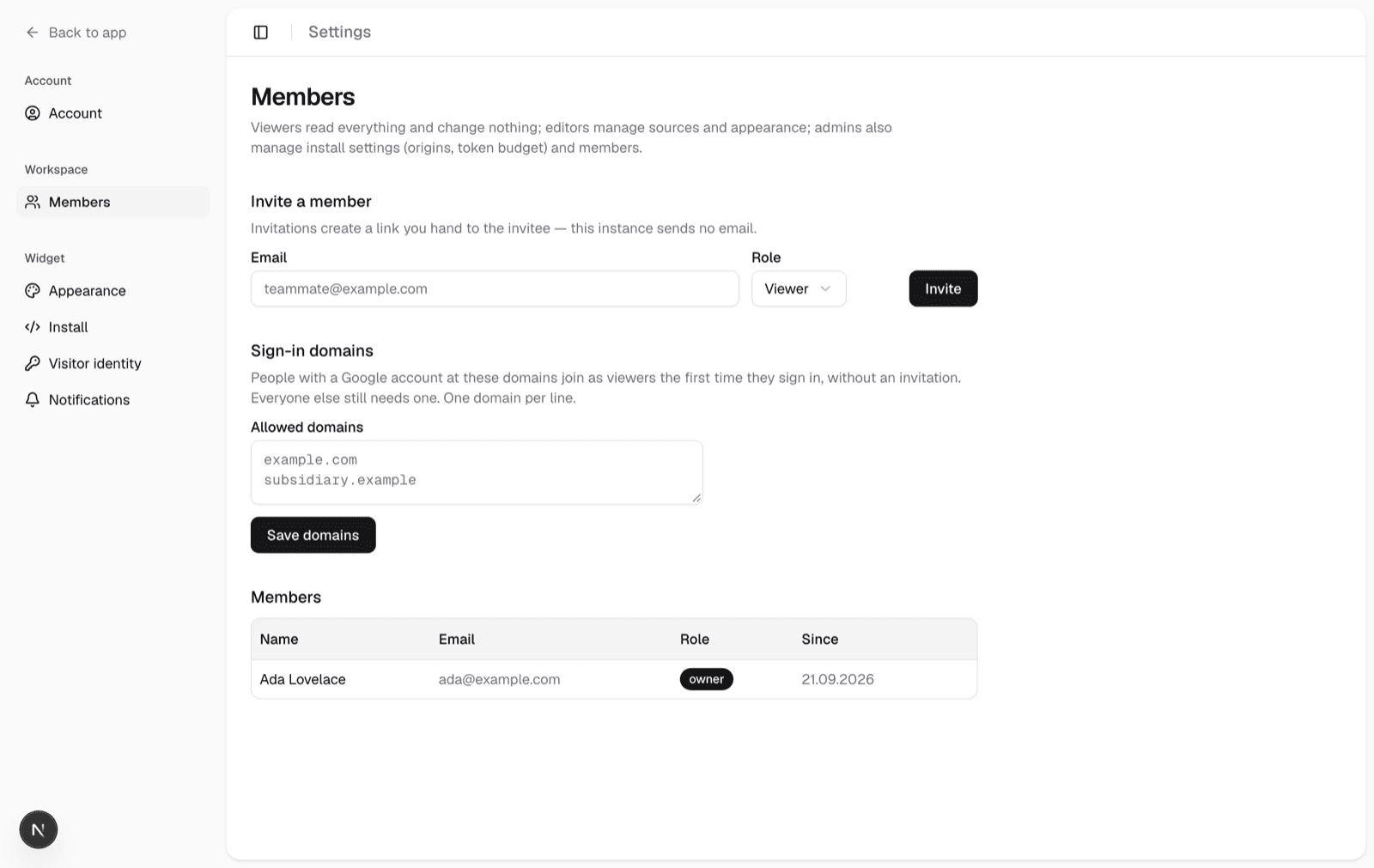
On Settings › Members, enter an email address and pick a role. What happens next depends on outbound email:
- With
SMTP_URLandEMAIL_FROMset, the invitee receives the accept link by mail. - Either way, the page lists the pending invitation with the same link, copyable, so you can hand it over yourself.
The link opens /accept-invitation/<id>, which names the organisation, the
inviter and the role. A visitor without an account creates one there; a
signed-in user accepts directly. An invitation expires after 48 hours;
inviting the same address again cancels the pending one and issues a fresh
link, which is how you resend. Revoke withdraws a pending invitation.
An invited address that signs in with Google instead of creating a password gets its invited role at once.
Changing and removing
The member table lets an admin change any member's role among viewer,
editor and admin, and remove a member. Removal ends the membership;
the account still exists, so re-inviting restores access.
Sign-in domains
When Google sign-in is configured, the Members page shows a Sign-in
domains list. A Google account whose verified email is at one of those
domains joins as a viewer on first sign-in without an invitation. Up to
twenty bare hostnames, lower-cased; an admin raises the role afterwards if
needed.
Set the list before announcing the instance: anyone at a listed domain can read every conversation the moment they sign in.
Overview
How an instance is organised into one organisation with projects, where each setting lives in the dashboard, and which role can change what.
Authentication
How operators sign in to the dashboard, why the first account matters, what closes sign-up afterwards, how password reset and Google sign-in work, and what the session depends on.