Install the widget
One script tag mounts the Deskbell widget and works out which server to call from its own URL. Placing the element yourself is the alternative.
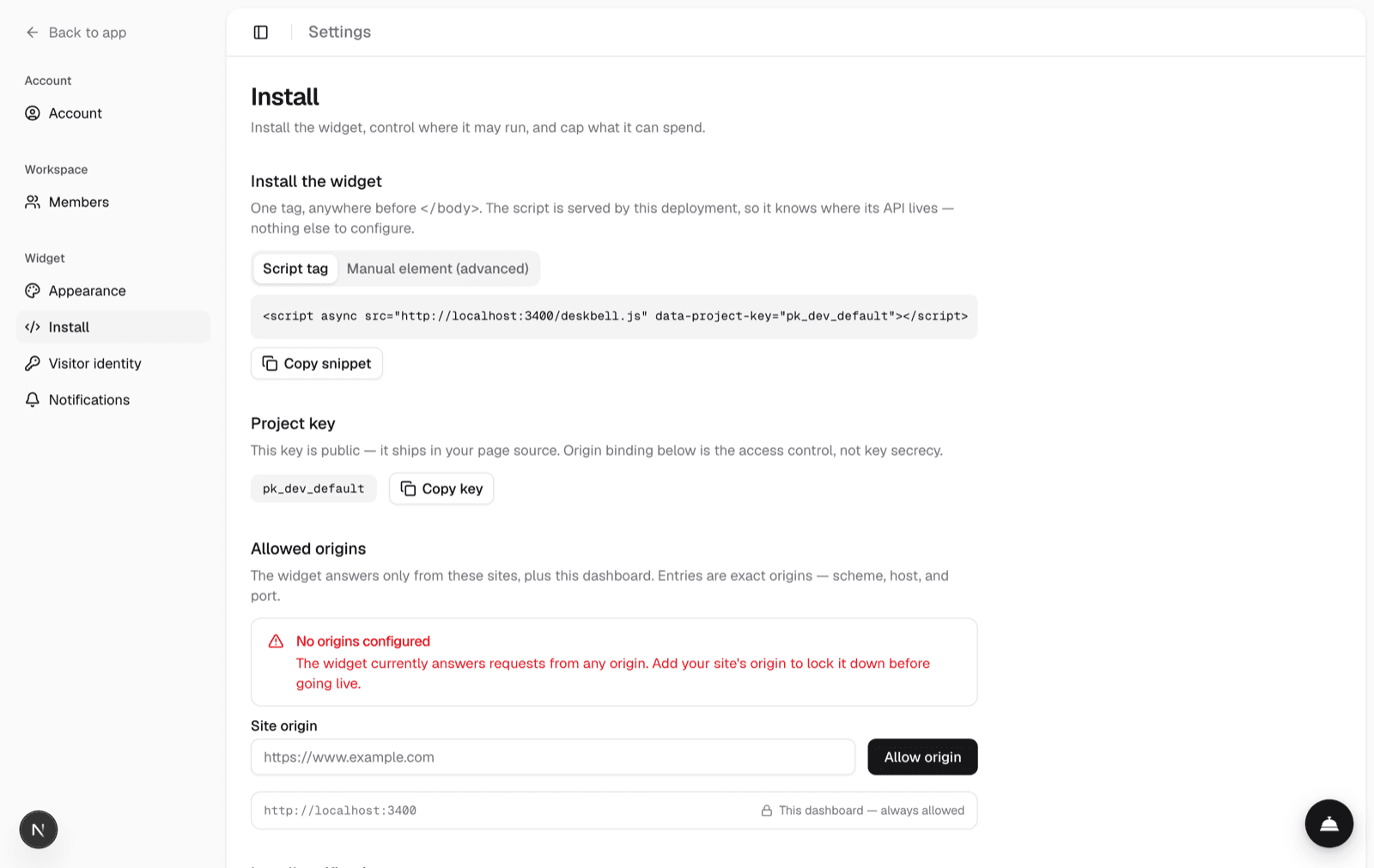
The widget is one script tag. It mounts itself and works out which server to call from the URL it was loaded from, so there is nothing else to configure.
<script
  async
  src="https://your-deskbell.example.com/deskbell.js"
  data-project-key="pk_live_..."
></script>
The Install page in your dashboard has this snippet with your own host and key already filled in. The pages under this one show where the tag goes on a plain HTML page, in a Next.js app and in a Docusaurus site.
Why there is no API URL
deskbell.js is served by your Deskbell deployment. The script reads its own
src and derives the API origin from it, so the two can never disagree. That
also means you cannot serve the bundle from a CDN and expect it to find your
server: it would call the CDN.
Placing the element yourself
Drop data-project-key and write the element when you need to control where it
sits in the DOM. Auto-mount stands down whenever a <deskbell-widget> already
exists, so the two forms never collide.
<script async src="https://your-deskbell.example.com/deskbell.js"></script>
<deskbell-widget
  project-key="pk_live_..."
  api-url="https://your-deskbell.example.com"
  color-scheme="auto"
></deskbell-widget>
The element form takes plain attribute names. The script-tag form prefixes the
same names with data-.
Single-page applications
Add data-render-on-load="false" to the script tag and the loader registers
the element without mounting it. Call deskbell("mount") on the routes that
want the widget and deskbell("unmount") to remove it. See the JavaScript
API.
Before it goes public
Add the origin to your project's allowlist on the Install page, using the exact scheme and port. In production a project with an empty allowlist refuses to answer.
The project key is visible in your page source and is not a secret. Origin binding, rate limits and the daily token budget are what protect you. Security explains each one.
Set a daily token budget while you are there. It defaults to unlimited.
Checking it works
The widget fires a beacon once per tab session when it mounts, and the Install page lists the origins it has been seen on. An origin appearing there that is not in your allowlist is the useful case: the beacon deliberately does not enforce the allowlist, so it can tell you the widget is live somewhere you have not authorised.
Installing from npm
When your application bundles its own JavaScript, install the widget as a
package instead of loading deskbell.js.
npm install @deskbell/widgetimport { register } from "@deskbell/widget";
register();register defines the <deskbell-widget> element. Place it with the same
attributes as the manual form above. api-url is required here: a package
knows nothing about your server.
The package is an ES module with preact as its one dependency. There is no
loader, no window.deskbell stub and no auto-mount; the element and its
open, close, toggle, ask and configure methods are the API.
For a UI of your own on the same server, use the SDK.
React
@deskbell/widget-react wraps the custom element for React codebases.
import { Deskbell } from "@deskbell/widget-react";

<Deskbell projectKey="pk_live_..." apiUrl="https://your-deskbell.example.com" />;
It is a wrapper around the web component rather than a React implementation of the UI, so the rendering, styling and behaviour are identical to the script tag. Restyling works through the same CSS parts and tokens.
Size
The widget is built on Preact in a shadow root, with nothing third-party beyond
it, and the build fails if deskbell.js passes 40KB gzipped. Shadow DOM is what keeps
your page's CSS out of the widget and the widget's CSS out of your page.
Overview
What the Deskbell widget is, the four ways to put it on a page, what can be configured from where, and the pages in this section that cover each part.
Plain HTML
Put the Deskbell widget on a static site or any hand-written HTML page with one script tag before the closing body tag, then allowlist the page's origin.